Setting Up Signal Archiving
Signal is an encrypted messaging platform increasingly used in financial services. Comma captures Signal messages for compliance archiving while preserving the end-to-end encryption that makes Signal secure.
How Signal capture works
Section titled “How Signal capture works”Signal capture uses the same QR-code pairing approach as WhatsApp. Comma registers as a linked device on the user’s Signal account, receiving a copy of messages for archiving without modifying the user’s experience.
Prerequisites
Section titled “Prerequisites”- Admin access to your Comma dashboard
- The “Allow your team to connect” toggle enabled for Signal
- Each user needs their Signal app open on their phone during pairing
Setup steps
Section titled “Setup steps”Admin setup
Section titled “Admin setup”- Log in to the Comma dashboard
- Navigate to Integrations
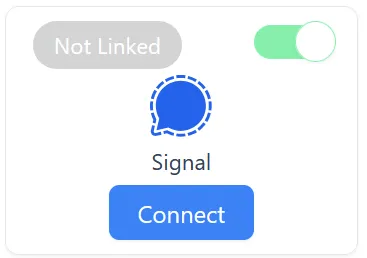
- Find Signal under available platforms
- Toggle on “Allow your team to connect”
User setup
Section titled “User setup”- On your computer, open a browser and log in to the Comma dashboard
- Navigate to Integrations > Your Connections
- Click Connect under Signal
- A QR code will appear on your computer screen
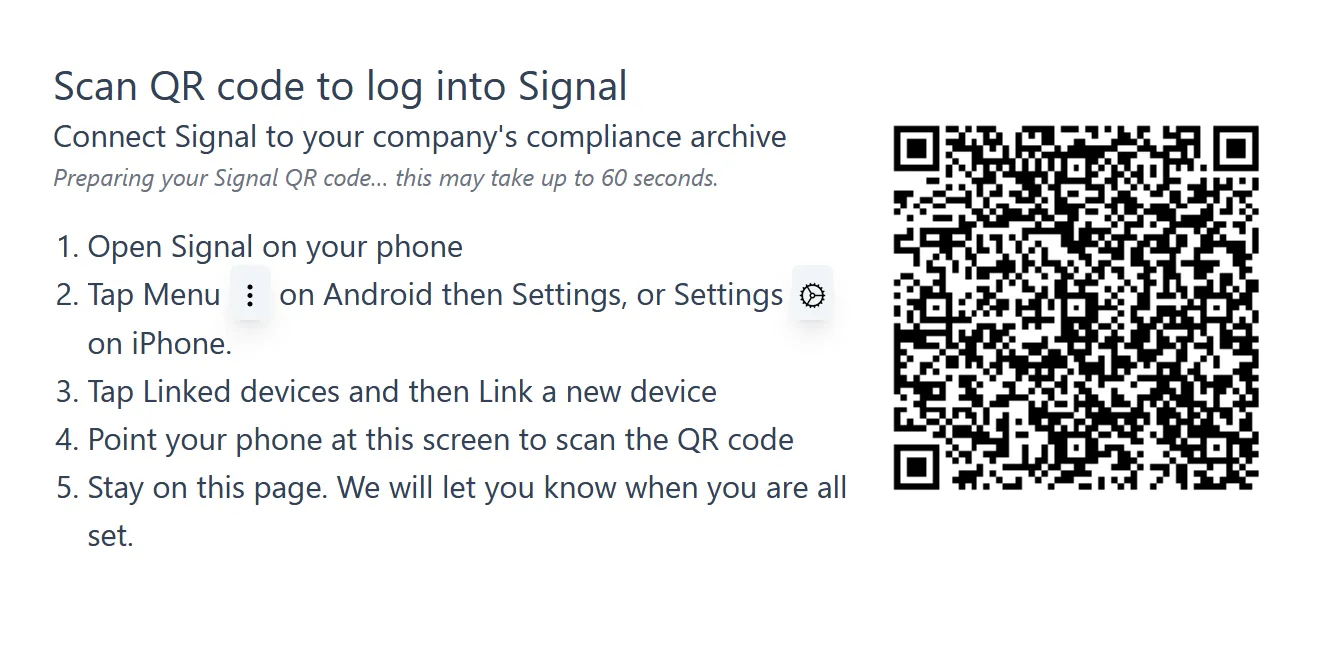
- Open Signal on your phone
- Go to Settings > Linked Devices
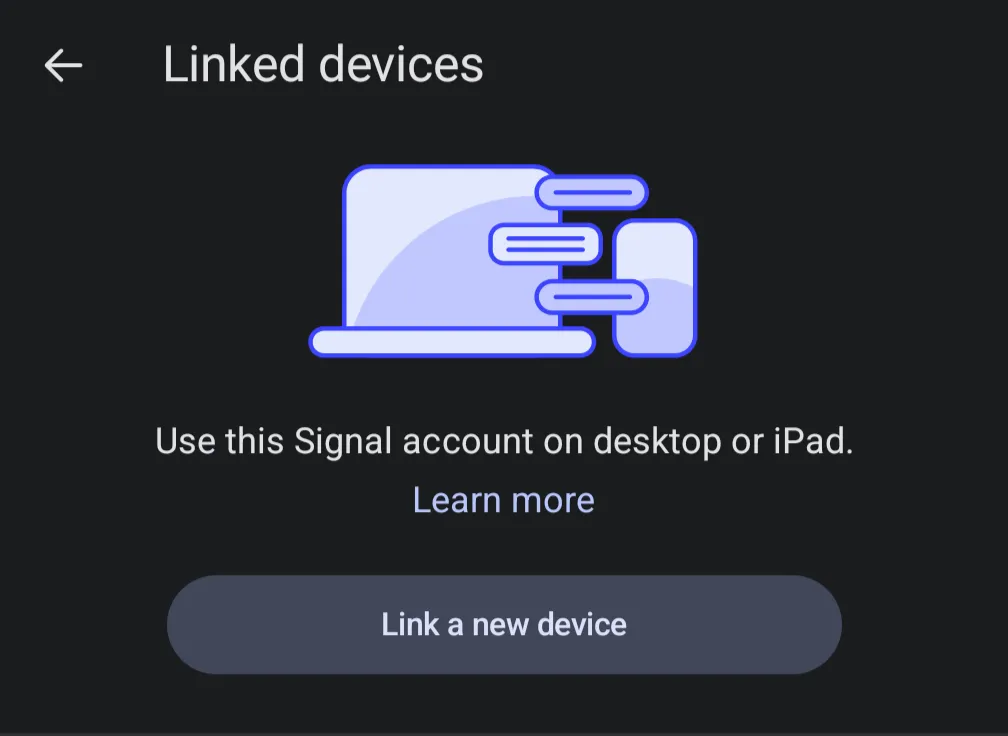 7. Tap Link New Device and scan the QR code
8. Confirm the link on your phone when prompted
7. Tap Link New Device and scan the QR code
8. Confirm the link on your phone when prompted
Troubleshooting
Section titled “Troubleshooting”Link failed or timed out - Signal’s linking process has a short timeout window. Make sure your phone has a stable internet connection and try again.
Messages from before pairing - Comma captures messages from the point of pairing forward. Historical messages sent before the integration was connected are not retroactively captured.
What’s next
Section titled “What’s next”- WhatsApp Setup - Add WhatsApp archiving
- Compliance Policies - Set up automated compliance checks