Setting Up Quo Archiving
Quo connects to Comma as a workspace integration using your workspace API key.
Prerequisites
Section titled “Prerequisites”- Quo workspace admin access (to retrieve the API key)
- Comma team admin access
- About 2 minutes
Setup steps
Section titled “Setup steps”-
Sign in to the Comma Compliance dashboard
-
Open Integrations in the top navigation
-
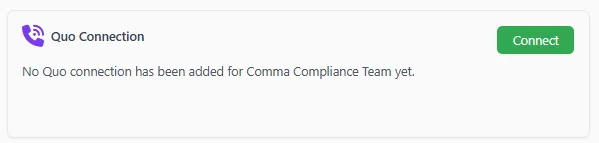
Under Workspace Integrations, find Quo Connection and click Connect
-
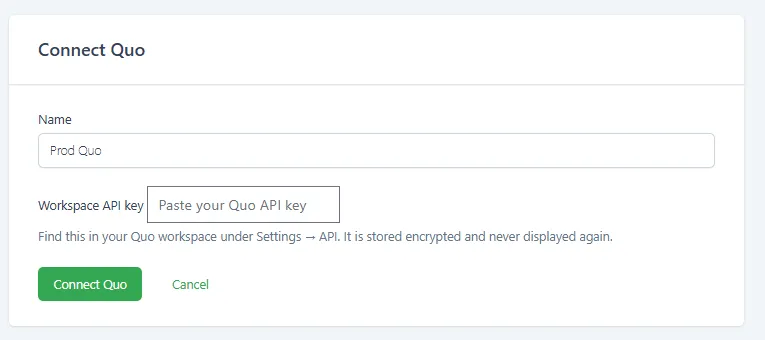
Enter a name for the connection (e.g. “Prod Quo”)
-
Paste in your Quo workspace API key into the Workspace API key field
- Find it in Quo under Settings → API
- The key is stored encrypted and will not be displayed again after you connect
-
Click Connect Quo
-
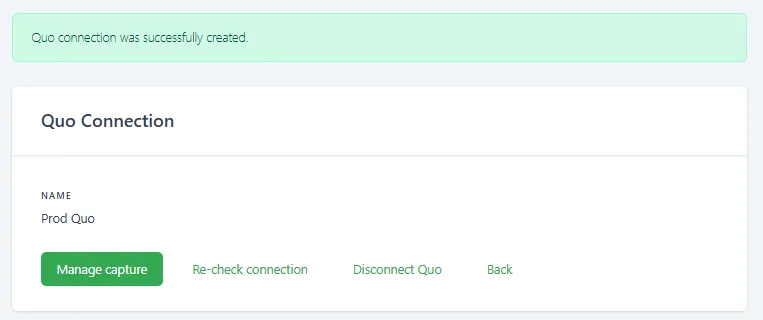
You’ll see a confirmation: “Quo connection was successfully created.”
After connecting
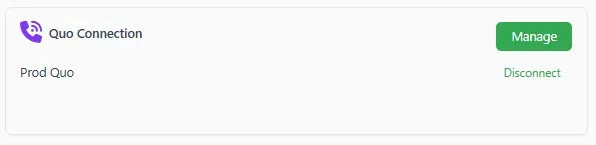
Section titled “After connecting”Back on the Integrations page, you’ll see Quo Connection with a Manage button. Your named connection appears below it with a Disconnect link.
From the connection detail page you can also:
- Manage capture — configure what gets archived
- Re-check connection — verify the API key is still valid
- Disconnect Quo — remove the integration
Capture begins immediately after the connection is created.