Configuring Compliance Policies
Compliance policies in Comma let you define rules that automatically flag messages matching specific patterns. Instead of reviewing every message manually, policies surface the ones that need attention.
How policies work
Section titled “How policies work”When a message is captured, Comma runs it through your configured policies in real time. If a message matches a policy rule, it is flagged for review and optionally triggers an alert.
Policies can match on:
- Keywords and phrases - Specific terms that indicate potential violations (e.g., “guaranteed returns”, “off the record”)
- Patterns - Regular expressions for structured data like account numbers or SSNs
- Channel rules - Flag all messages from specific platforms or channels
- Sender/recipient rules - Flag communications between specific parties
Creating a policy
Section titled “Creating a policy”-
Log in to the Comma dashboard as an admin
-
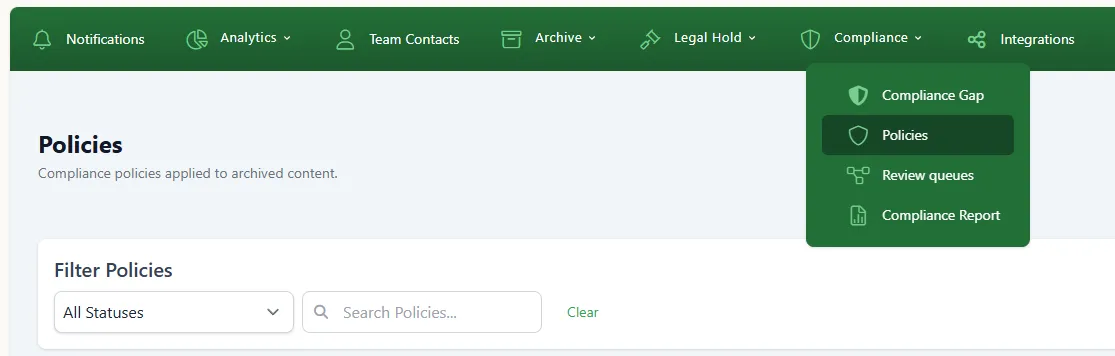
Navigate to Compliance > Policies
-
Click Create Policy
-
Configure the policy:
- Name - A descriptive name (e.g., “Promissory Language Detection”)
- Type - Select the matching method (keyword, pattern, channel, or sender/recipient)
- Rules - Define the matching criteria
- Severity - Set the priority level (low, medium, high, critical)
- Actions - Choose what happens on match (flag for review, send alert, or both)
-
Click Save
Reviewing flagged messages
Section titled “Reviewing flagged messages”Flagged messages appear in Compliance > Review Queue. For each flagged item you can:
- Approve - Mark as reviewed, no violation found
- Escalate - Forward to a supervisor or compliance officer
- Export - Download for external review or regulatory response
Built-in policy templates
Section titled “Built-in policy templates”Comma includes pre-built policy templates for common compliance scenarios:
- SEC/FINRA promissory language - Detects guarantees, promises of returns, and similar language
- Off-channel redirect - Flags attempts to move conversations to unmonitored platforms
- PII detection - Identifies personally identifiable information in messages
- Trade-related language - Flags potential front-running or insider trading indicators
To use a template, go to Policies > Templates and click Use Template on the one you want. You can customize the template rules before saving.
Best practices
Section titled “Best practices”- Start broad, then narrow - Begin with a few high-priority policies and refine based on the review queue volume
- Review regularly - Check the review queue daily to keep false positives manageable
- Update keyword lists - Regulatory language evolves; update your keyword lists quarterly
- Use severity levels - Reserve “critical” for genuinely urgent patterns; overusing it causes alert fatigue
What’s next
Section titled “What’s next”- SEC & FINRA FAQ - Understand the regulations driving these policies
- Getting Started - Return to the setup overview