Setting Up HubSpot CRM Push
Comma Compliance connects to HubSpot as a workspace integration. Once connected, Comma pushes a summary of each monitored business conversation to the matching contact’s HubSpot record, keeping a record of message interactions directly on the contact’s profile.
This connector is one-way. Comma writes to HubSpot. It doesn’t capture from HubSpot itself.
Prerequisites
Section titled “Prerequisites”- Comma team admin access (only a team admin can connect this integration)
- A HubSpot account with permission to authorize new app connections
- About 5 minutes
Connect HubSpot
Section titled “Connect HubSpot”-
Sign in to Comma Compliance
-
Open Integrations in the top navigation

-
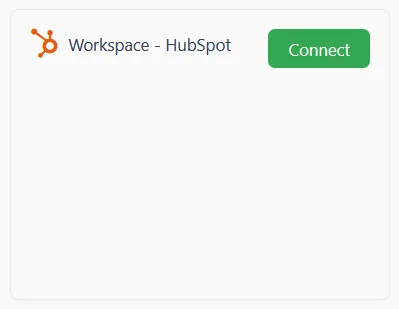
Under Workspace Integrations, find the HubSpot card and click Connect
-
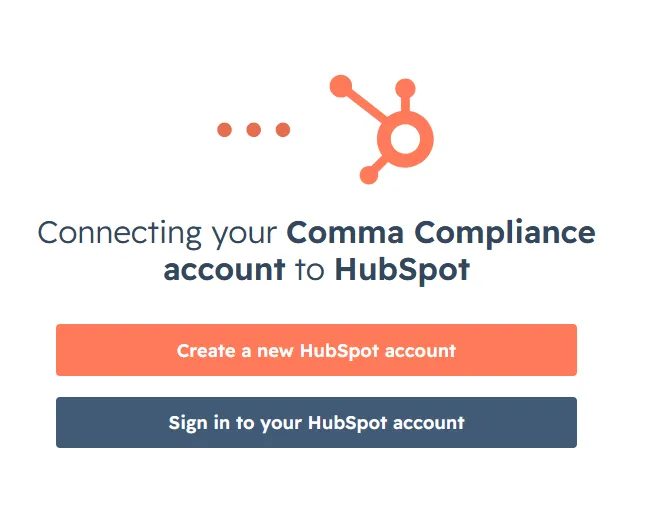
Sign in to your HubSpot account
-
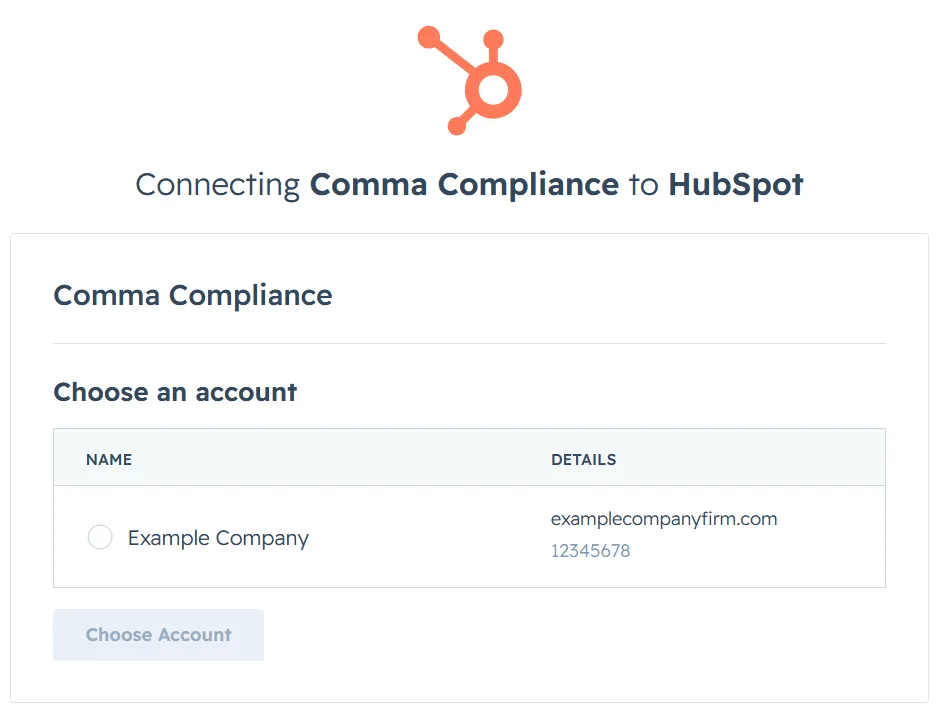
Select the HubSpot account you want to connect, then click Choose Account
-
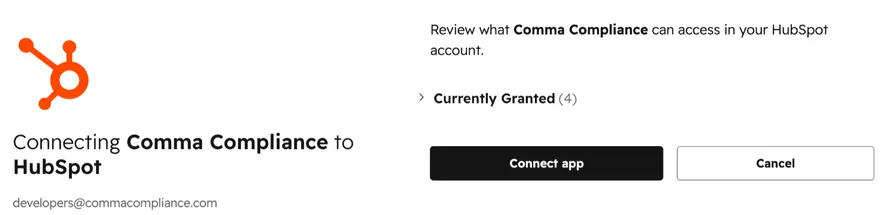
Click Connect App to authorize the integration
-
You’ll see a confirmation: “We’ve successfully added that HubSpot account to your team!”

After connecting
Section titled “After connecting”Back on the Integrations page, the HubSpot card now shows a Manage button.
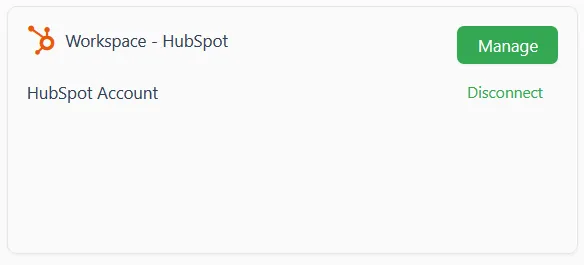
From the connection detail page, you can:
- Backfill past conversations - push summaries for conversations that happened before you connected
- Monitor push status - see which conversations pushed successfully and which didn’t
- Edit settings - choose what Comma writes to HubSpot and which contacts and channels are in scope
- Re-check connection - confirm HubSpot permissions are still valid
- Disconnect - stop future pushes and revoke Comma’s access to your HubSpot account
What’s next
Section titled “What’s next”- Business vs. personal classification - only business conversations are eligible to push to HubSpot