Team Settings
Esta página aún no está disponible en tu idioma.
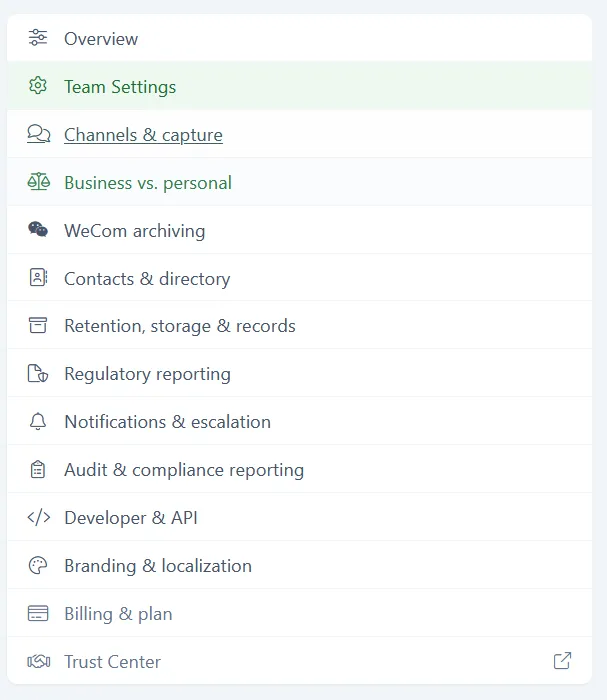
Team Settings holds your team’s name, time zone, and locale. It is the shortest section in the Configuration Center: three fields and a save button. You reach it from Team > Configuration > Team Settings. Only admins can change these settings.
The three fields
Section titled “The three fields”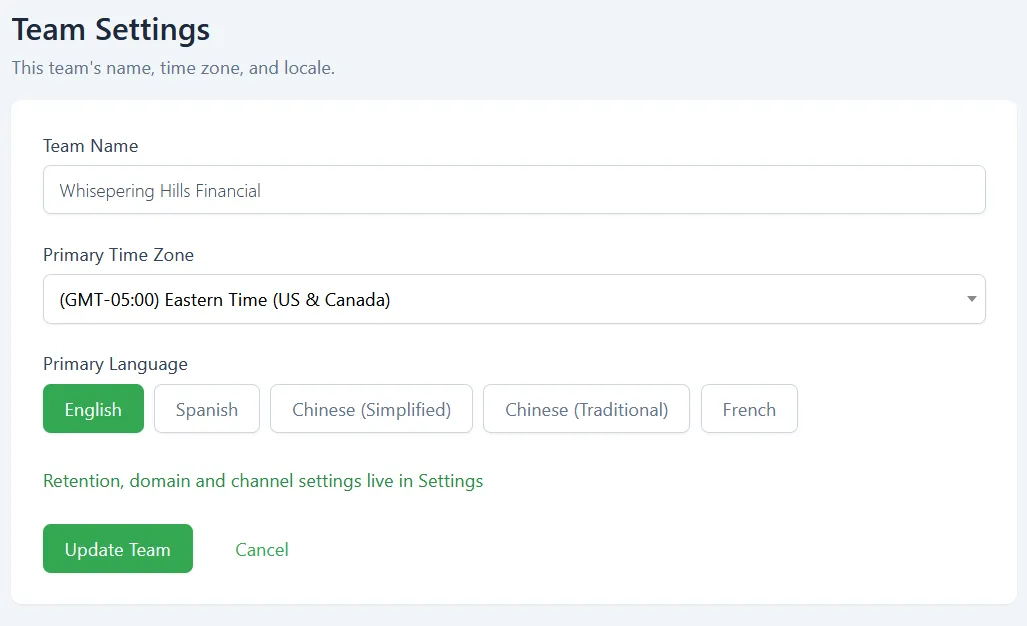
Team Name
Section titled “Team Name”A free-text field for the team’s display name. This is the name that identifies your tenant in the app.
Primary Time Zone
Section titled “Primary Time Zone”A dropdown listing time zones with their GMT offset, for example (GMT-05:00) Eastern Time (US & Canada) or (GMT+05:00) Karachi. Set it to the zone your team primarily works in.
Notifications & escalation carries its own Quiet-hours timezone field, set separately. Changing the primary time zone here does not change the zone your quiet-hours window is evaluated in. See Notifications & escalation.
Primary Language
Section titled “Primary Language”Five options, shown as buttons: English, Spanish, Chinese (Simplified), Chinese (Traditional), and French. Click one to select it. English is the default.
Saving
Section titled “Saving”Click Update Team to apply your changes, or Cancel to discard them.
What is not here
Section titled “What is not here”Team Settings covers naming and locale only. The screen notes that retention, domain, and channel settings live elsewhere in the Configuration Center:
- Channels & capture - which channels this tenant captures
- Retention, storage & records - retention windows and outbound archive delivery
- Contacts & directory - what admins and viewers see in the contact directory
Team members and their roles are managed separately, under Team > Team Members. See Inviting team members and Roles and permissions.