Setting Up Slack Archiving
Esta página aún no está disponible en tu idioma.
Slack runs more of your business than your email does. Comma captures Slack Connect threads, DMs, private groups, public channels, edits, deletes, and file shares into the same exam-ready archive as the rest of your channels - one OAuth click, no apps on user devices.
How Slack capture works
Section titled “How Slack capture works”- Comma installs as a Slack workspace app via standard Slack OAuth
- Capture begins immediately for every channel the bot is granted access to (public channels, private channels where it’s invited, and DMs)
- Slack Connect external channels are captured the same way once both sides agree
- Edits and deletions are preserved alongside the original message
- File shares are downloaded into WORM storage with their original Slack metadata
- No additional Slack admin permissions are required beyond the OAuth scopes shown at install time
Prerequisites
Section titled “Prerequisites”- Slack workspace admin (the OAuth installer must be a workspace owner or admin)
- Comma team admin access
- About 5 minutes
Setup steps
Section titled “Setup steps”-
Sign in to the Comma Compliance dashboard
-
Open Integrations in the top navigation
-
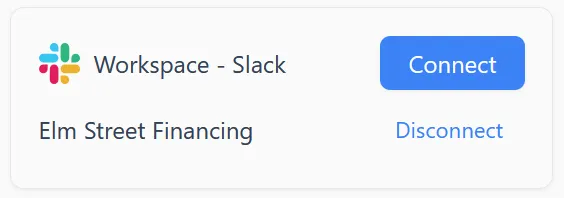
Under Workspace Integrations, find the Slack card and click Connect
-
Slack opens a permissions screen for the Comma Compliance Archive app — confirm your workspace and click Allow
-
You’ll be redirected back to Comma with the installation confirmed
-
Capture begins automatically; the integration card now lists the connected workspace
Adding Comma to additional channels
Section titled “Adding Comma to additional channels”For private channels Comma should archive, invite the Comma bot to each one:
-
Open the private channel in Slack
-
Type
/in the message box and select Add apps to this channel, or type/invite @Commadirectly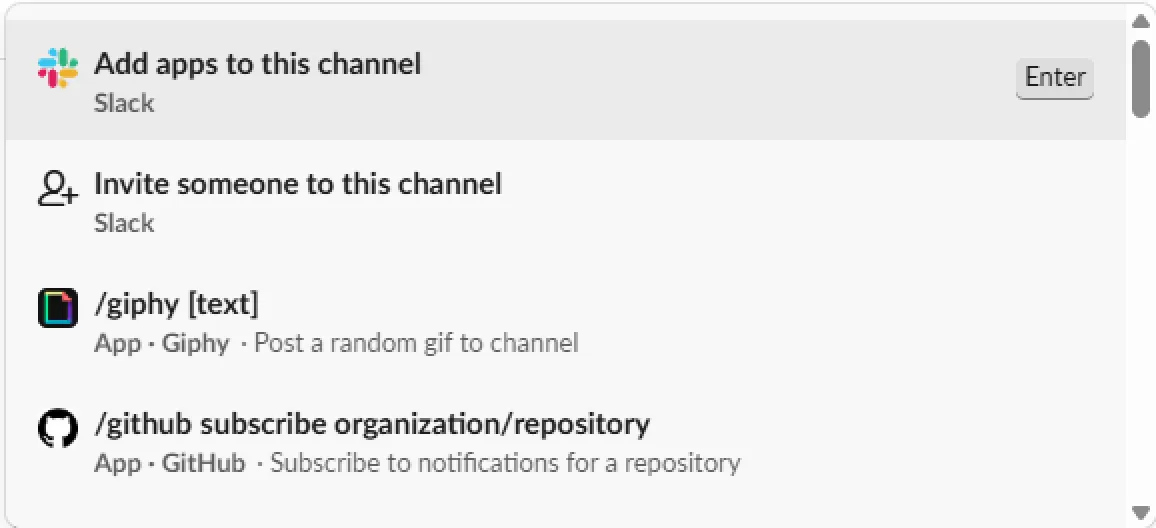
-
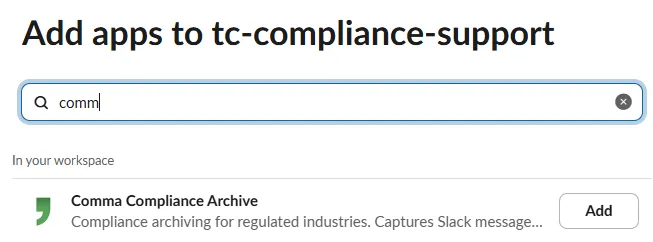
Search for Comma and click Add
-
Capture starts on the next message in that channel

The Channels tab in the admin dashboard shows which private channels are archiving and which still need an invite.
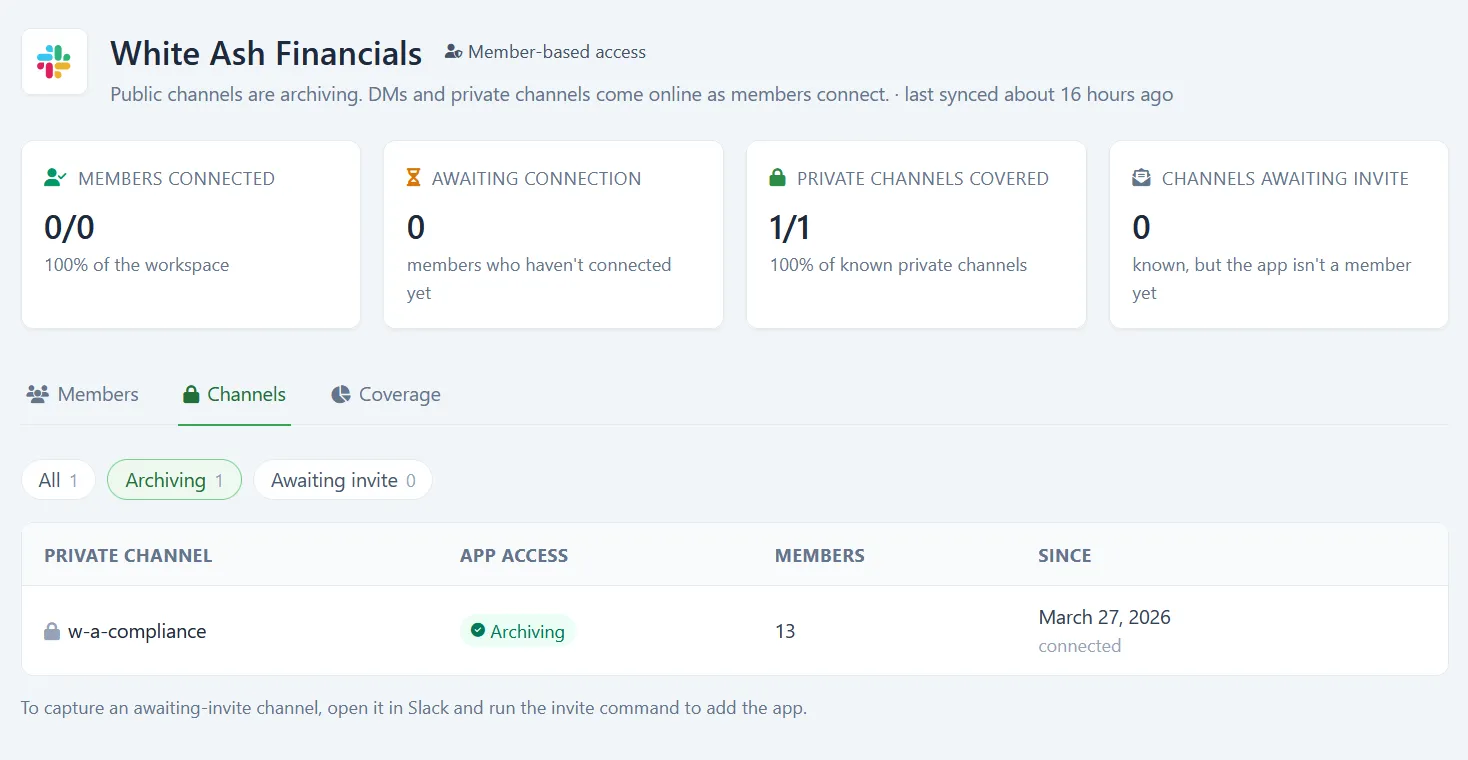
Public channels are covered automatically once the workspace is connected. DM capture depends on your Slack plan — see below.
Archiving direct messages (DMs)
Section titled “Archiving direct messages (DMs)”DM capture depends on your Slack plan.
Team plan: After the workspace admin completes the OAuth connection, Comma automatically prompts all non-admin workspace members to authorize when they log in to their Comma Compliance workspace. Each user must complete the OAuth flow individually. To connect:
-
Sign in to app.commacompliance.com
-
Open Your Connections from your account menu
-
Find the Slack workspace your admin connected and click Connect
-
Complete the Slack OAuth screen — confirm your workspace and click Allow
-
You’ll be redirected back to Comma, where your Slack account will show as connected
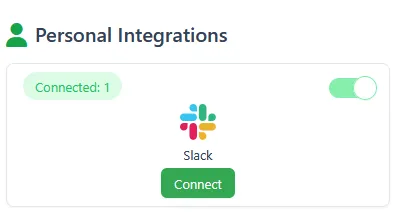
Once connected, your DMs begin capturing. Admins can track member authorization status in the Comma dashboard under Integrations → Slack → [workspace] → Coverage, which shows a breakdown of Connected (DMs archiving), Pending (invited but not yet authorized), and No account (not yet invited to Comma) members.
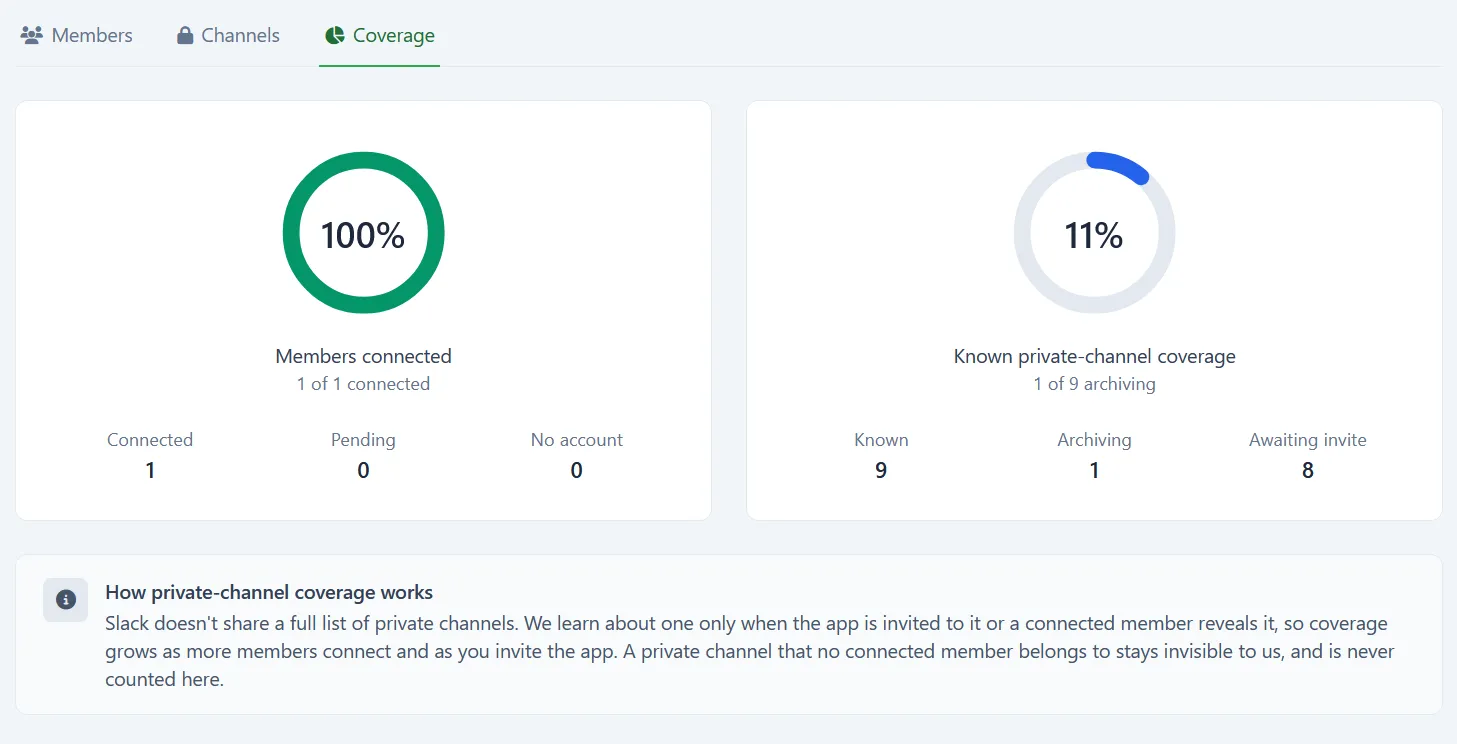
Private channel coverage also grows as members connect — Comma discovers a private channel when the bot is invited to it or when a connected member belongs to it.
Enterprise Grid: All users are covered from day one via the Discovery API. No per-user authorization is required.
See Slack Plan Requirements for a full breakdown of what each plan captures automatically and what requires additional steps.
Removing the integration
Section titled “Removing the integration”- From the Slack integration card in Comma, click Disconnect
- Optionally remove the Comma app from Slack: Slack Settings & administration > Manage apps > Comma > Remove App
- Historical messages remain in your archive under your retention policy
What’s next
Section titled “What’s next”- Slack Plan Requirements - Team plan limitations and Enterprise Grid differences
- Microsoft 365 Setup - Add Teams, Outlook, and Exchange
- Inbound Webhooks - Push messages from custom apps into Comma