Setting Up HubSpot CRM Push
Esta página aún no está disponible en tu idioma.
Comma Compliance connects to HubSpot as a workspace integration. Once connected, Comma pushes a summary of each monitored business conversation to the matching contact’s HubSpot record, keeping a record of message interactions directly on the contact’s profile.
This connector is one-way. Comma writes to HubSpot. It doesn’t capture from HubSpot itself.
Prerequisites
Section titled “Prerequisites”- Comma team admin access (only a team admin can connect this integration)
- A HubSpot account with permission to authorize new app connections
- About 5 minutes
Connect HubSpot
Section titled “Connect HubSpot”-
Sign in to Comma Compliance
-
Open Integrations in the top navigation

-
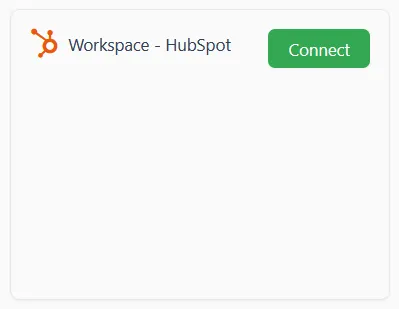
Under Workspace Integrations, find the HubSpot card and click Connect
-
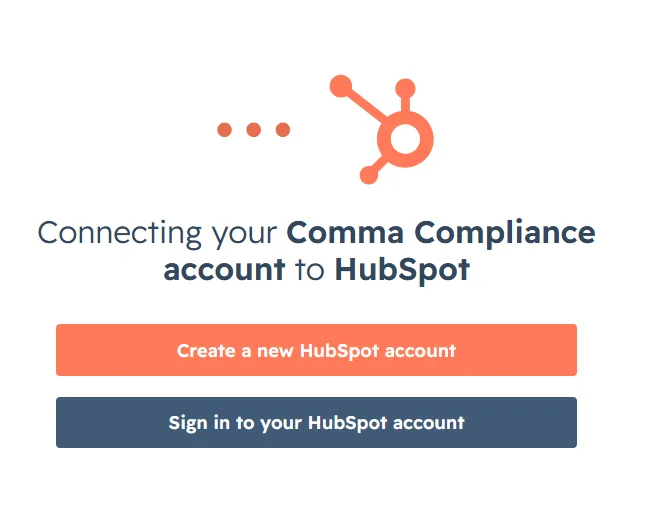
Sign in to your HubSpot account
-
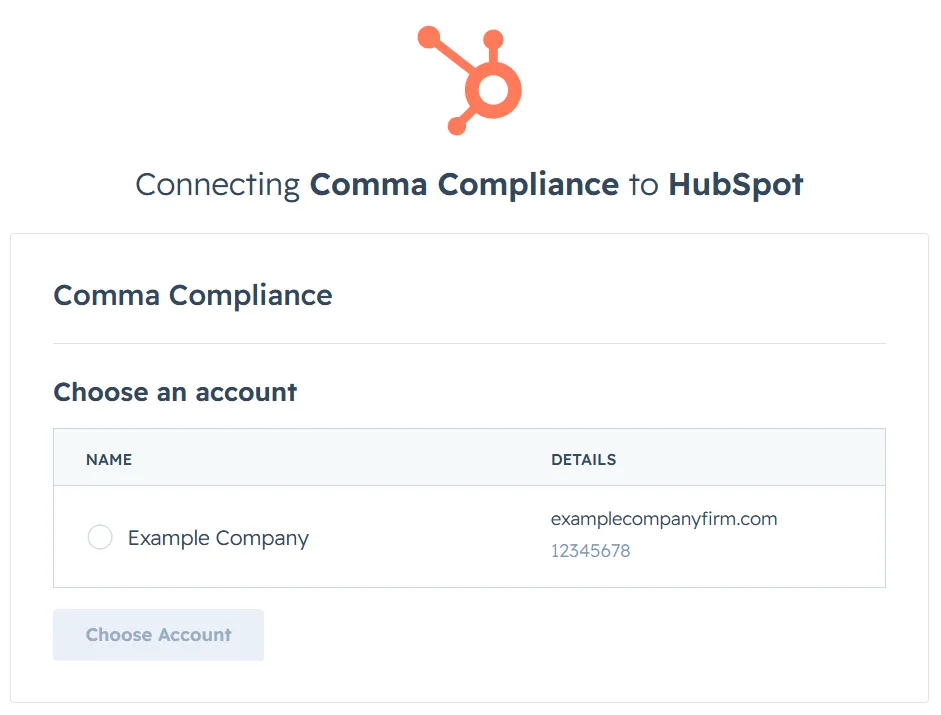
Select the HubSpot account you want to connect, then click Choose Account
-
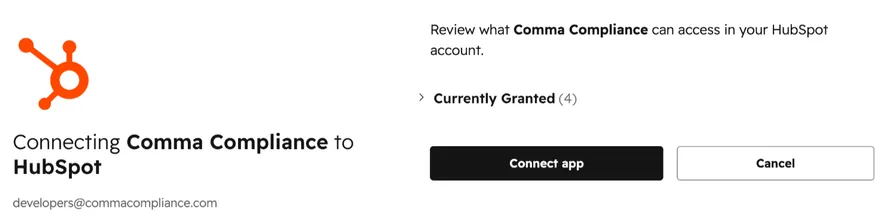
Click Connect App to authorize the integration
-
You’ll see a confirmation: “We’ve successfully added that HubSpot account to your team!”

After connecting
Section titled “After connecting”Back on the Integrations page, the HubSpot card now shows a Manage button.
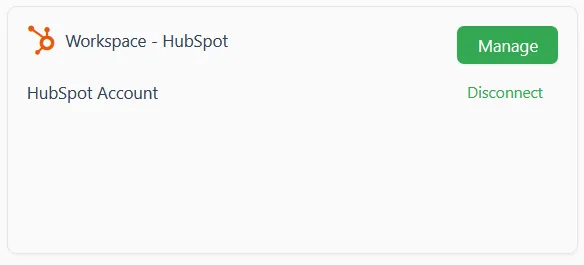
From the connection detail page, you can:
- Backfill past conversations - push summaries for conversations that happened before you connected (see Backfill past conversations)
- Monitor push status - see which conversations pushed successfully and which didn’t
- Edit settings - choose what Comma writes to HubSpot and which contacts and channels are in scope
- Re-check connection - confirm HubSpot permissions are still valid
- Disconnect - stop future pushes and revoke Comma’s access to your HubSpot account
Backfill past conversations
Section titled “Backfill past conversations”A backfill catches HubSpot up on conversations from before you connected. You always see a preview first. Nothing is written to HubSpot until you confirm.
Each matched contact gets one last-touch timestamp and one summary note for the whole date range, not one per conversation.
- Open Integrations, then the HubSpot connection, and click Backfill.
- Choose a date range with From and To. Ranges have a maximum length, and the page shows it.
- Click Preview backfill. Nothing is written at this step. Comma builds the preview in the background, so reload the page if it still says it is working out what would be written.
- Review the preview. It shows how many contacts will be updated, how many had no HubSpot match, and how many matched more than one HubSpot contact. Each row shows the contact, the last conversation date, the number of conversations, a status, and the summary Comma would write.
- Click Download CSV to review the same list in Excel or share it with someone who needs to approve it first.
- When you are satisfied, click Confirm and push. This is the only step that writes to HubSpot. To stop instead, click Cancel backfill. Nothing is written and the run is closed.
Contacts with no match or more than one match are listed in the preview with the same prominence as the ones that will be pushed, so you can see what a backfill will not cover.
One backfill covers at most 500 contacts. If your range holds more, the preview says so above the Confirm button and lists how many are left out. Confirm that run, then run another backfill over a narrower date range to reach the rest.
What’s next
Section titled “What’s next”- Business vs. personal classification - only business conversations are eligible to push to HubSpot