Setting Up WhatsApp Archiving
Esta página aún no está disponible en tu idioma.
WhatsApp is one of the most commonly used off-channel communication tools in financial services. Comma captures WhatsApp business messages without touching personal content, draining battery, or requiring new apps on the device.
How WhatsApp capture works
Section titled “How WhatsApp capture works”Comma uses a QR-code pairing method to link each user’s WhatsApp account. Once paired:
- Business messages are captured automatically in real time
- Personal messages are never accessed or stored
- No MDM or device management is required
- No additional apps are installed on the user’s device
- No battery impact since Comma does not run on the device
Prerequisites
Section titled “Prerequisites”- Admin access to your Comma dashboard
- The “Allow your team to connect” toggle enabled for WhatsApp (set by an admin under Integrations)
- Each user needs their WhatsApp app open on their phone during initial pairing
Setup steps
Section titled “Setup steps”Admin setup
Section titled “Admin setup”- Log in to the Comma Compliance dashboard
- Navigate to Integrations in the top navigation bar
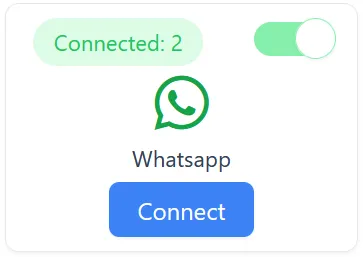
- Find WhatsApp under available platforms
- Toggle on “Allow your team to connect”
User setup
Section titled “User setup”Each team member completes these steps individually:
- On your computer, open a browser and log in to the Comma dashboard
- Navigate to Integrations > Your Connections
- Click Connect under WhatsApp
- A QR code will appear on your computer screen
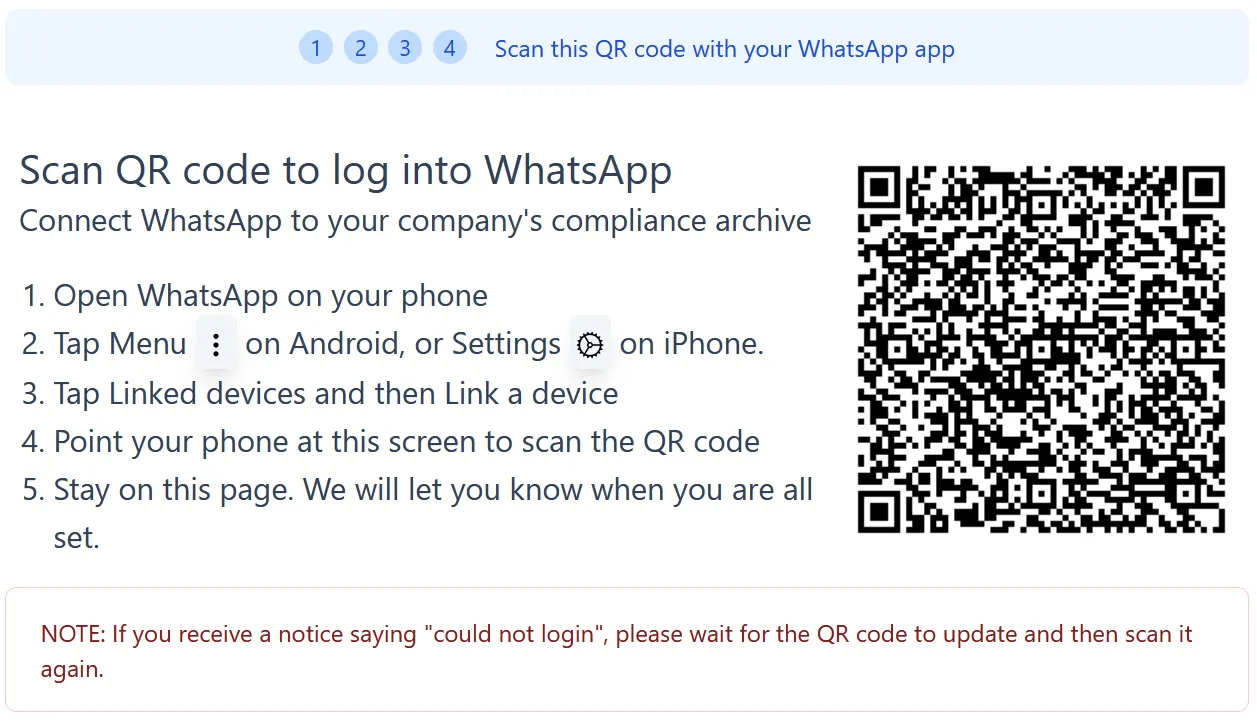
- Open WhatsApp on your phone
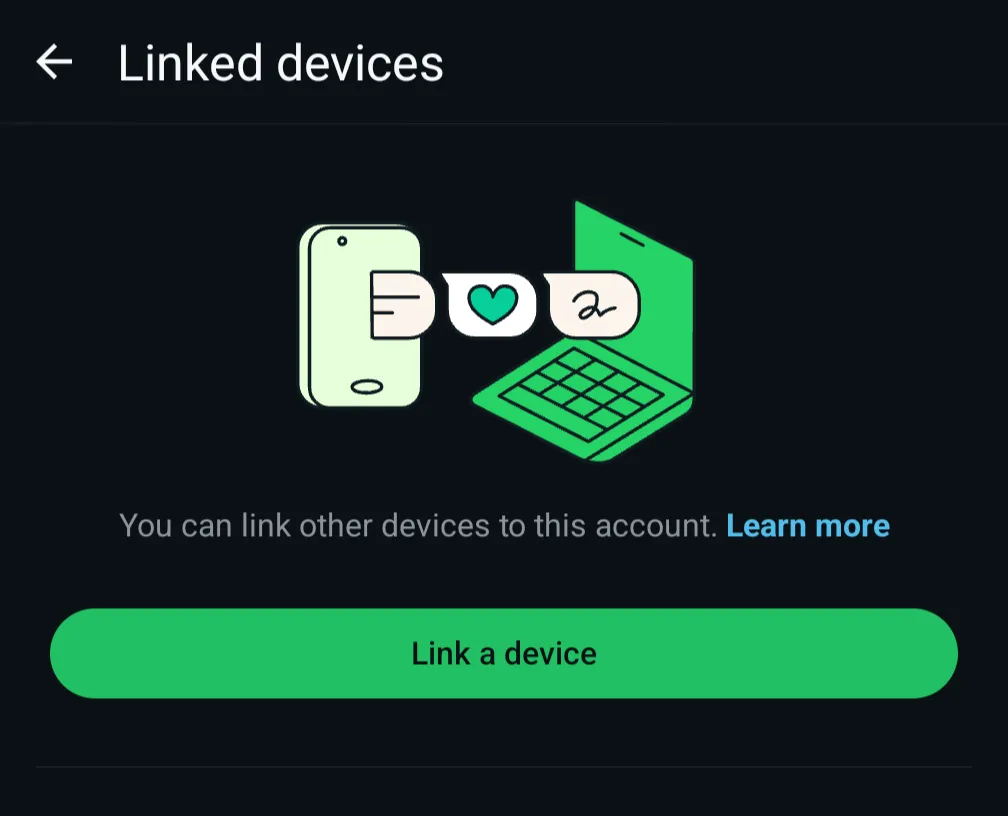
- Go to Settings > Linked Devices > Link a Device
- Scan the QR code displayed on the Comma screen
- Once linked, Comma begins capturing business messages automatically
Keeping your connection active
Section titled “Keeping your connection active”Comma pairs as a WhatsApp linked device, so two of WhatsApp’s own rules affect archiving after setup:
- Leave Comma in your Linked Devices list. Removing Comma from WhatsApp Settings > Linked Devices ends the connection and stops archiving. If you remove it by mistake, reconnect using the user setup steps above.
- Keep the primary phone online at least every 14 days. WhatsApp automatically logs out any linked device if the primary phone has not connected to the internet for 14 or more days. Archiving pauses until the phone comes back online and the account reconnects. See WhatsApp’s about linked devices note.
- Only connect accounts that are actually in use. If someone does not message on WhatsApp, do not link their account just to have it connected. A dormant line trips the 14-day rule and shows up as a dropped connection. Let your admin know the user is not active on WhatsApp instead.
Troubleshooting
Section titled “Troubleshooting”QR code expired - QR codes are time-limited. If the code expires, click Connect again to generate a new one.
WhatsApp shows “Linked Devices limit reached” - WhatsApp allows up to 4 linked devices. Remove an unused linked device to make room for Comma.
Messages not appearing in archive - Allow a few minutes after pairing for initial sync. If messages still don’t appear after 15 minutes, disconnect and reconnect the integration.
What’s next
Section titled “What’s next”- Signal Setup - Add Signal archiving
- Your Connections guide - Connect other personal platforms