Setting Up Fireflies Archiving
Esta página aún no está disponible en tu idioma.
Connect Fireflies to archive accessible meeting transcripts and details in Comma. Setup has two parts: connect the API key, then configure meeting delivery in Fireflies.
Before you start
Section titled “Before you start”- You need Comma team administrator access. Ask Comma support to enable Fireflies for your team. Then open Settings, Channels & capture and enable the Fireflies channel. The Fireflies Connection card appears under Workspace Integrations after that.
- Choose the Fireflies account whose accessible meetings you intend to archive. Comma has one Fireflies connection per team.
- Retrieve the key from Integrations, Fireflies API, following Fireflies’ authorization guide.
- Confirm your plan and meeting access with Comma. Fireflies publishes different API limits by plan; its Business and Enterprise plans allow more frequent retrieval than Free and Pro. Recording availability also depends on your plan and source settings.
Connect the API key
Section titled “Connect the API key”- Sign in to the Comma dashboard as a team administrator and select the correct team.
- Open Integrations and find Fireflies Connection under Workspace Integrations.
- Click Connect, then paste the key into Workspace API key.
- Leave Webhook signing secret (optional for now) blank if you have not configured delivery yet.
- Click Connect Fireflies. Comma verifies the key before saving it. The stored key is encrypted and is not displayed again.
Do not send your API key or signing secret to support or include them in screenshots.
Set up meeting delivery
Section titled “Set up meeting delivery”A webhook is a notification Fireflies sends when a transcript is ready. You must configure it in Fireflies; saving an API key in Comma does not do this step.
- On Fireflies Connection in Comma, copy the URL under Delivery address. Use your own connection’s address, not a URL from an example or screenshot.
- In Fireflies, open Settings, then Developer Settings.
- Paste Comma’s full HTTPS delivery address into the webhooks field and save it.
- Generate or enter a signing secret of 16 to 32 characters in Fireflies and save it.
- Return to Comma. Under Webhook signing secret, paste that same secret and click Save signing secret.
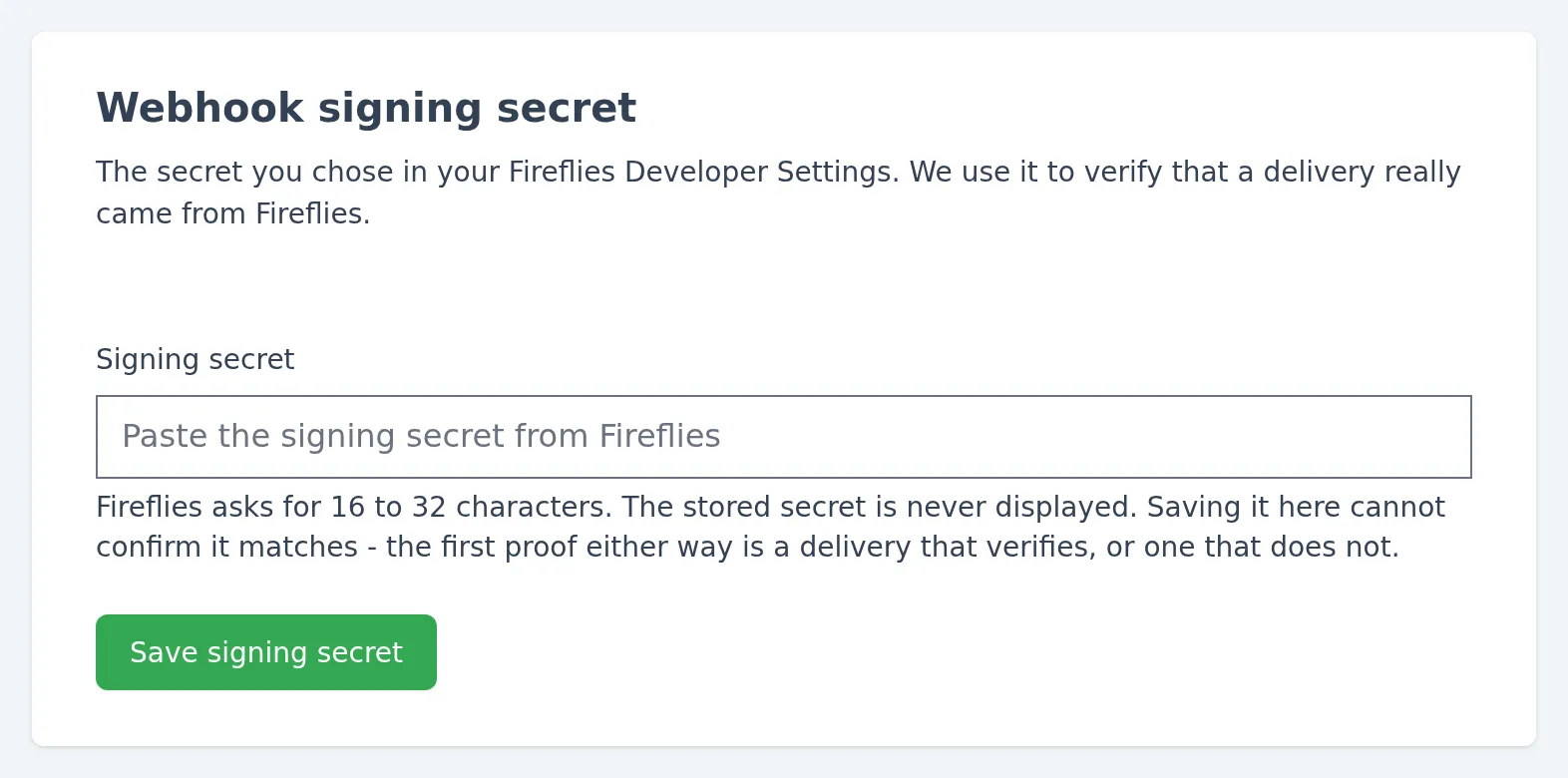
Demo Data. The secret field is intentionally blank.
Fireflies’ webhook guide describes these settings. It also specifies that notifications are sent for meetings owned by the account configuring the webhook. Test the ownership and sharing arrangements your organization actually uses.
On Fireflies Enterprise, a Super Admin can configure a team-wide webhook for meetings owned by teammates. Confirm that scope with Comma during setup and test a meeting owned by another team member.
Comma rejects webhook deliveries without a matching signing secret. Periodic retrieval checks can still find accessible meetings, but they do not prove the webhook is configured correctly. Finish both steps and verify a meeting before relying on delivery.
Choose what to capture
Section titled “Choose what to capture”Under What to capture, review these settings and click Save capture settings:
| Content | Default | Setting |
|---|---|---|
| Available transcripts and meeting details | Included | No separate transcript toggle. |
| AI summaries and action items | On | Turn AI summaries and action items off if they are outside your archival scope. |
| Available audio and video | Off | Turn Meeting recordings on. Video must also be enabled and available in Fireflies. |
The transcript is searchable and used for policy checks. AI summaries and action items are separate, AI-generated attachments; their text is not scanned for policy matches or indexed as the transcript. Transcripts themselves are machine-generated and can contain errors.
Media capture depends on the source offering a downloadable recording and the download succeeding before access expires. A captured transcript does not by itself mean audio or video was captured.
Verify a meeting
Section titled “Verify a meeting”- Record a short meeting owned by the account whose Fireflies webhook you configured. Wait for Fireflies to finish the transcript.
- In Comma, inspect Last meeting delivered, Last successful sweep and any open coverage gaps on Fireflies Connection. Periodic sweeps run on a 30-minute schedule; this is not a delivery-time guarantee.
- Find the meeting in the archive and check its title, transcript, source and available participant details.
- Open the AI-written attachments and any recordings you enabled. Confirm the expected files arrived.
The connection shows when a signing secret is stored, but that does not verify the webhook exists at Fireflies or that the secrets match. Actual delivery and the archived meeting are the checks that matter.
Troubleshooting and maintenance
Section titled “Troubleshooting and maintenance”| What you see | What to check |
|---|---|
| API key rejected | Verify the key in Fireflies and the account it belongs to. |
| Plan or API access error | Check the workspace’s entitlement with Fireflies and Comma support. Rotating a valid key will not fix plan restrictions. |
| Meetings appear only after a sweep | Check the webhook address, the matching secret and which account owns the meeting. |
| Deliveries arriving at a different address | Replace the old webhook URL in Fireflies with the current Delivery address shown in Comma. |
| Transcript present, audio or video missing | Check Meeting recordings, Fireflies’ recording settings, source availability and any open media gap. |
Use Rotate API key to replace a key; afterwards, delete the old key in Fireflies. Rotating the key does not change the webhook signing secret.
Use Reconnect after repairing an authorization problem. If you previously disconnected, enter the webhook signing secret again because disconnecting clears it from Comma.
To stop capture, choose Disconnect Fireflies, then delete the API key and remove the webhook in Fireflies Developer Settings. Comma cannot remove that webhook for you. Disconnecting does not itself erase archived meetings; existing records remain subject to your organization’s retention settings.
Scope to know
Section titled “Scope to know”- Recorder meetings are treated as business records. This is a team-level connection with access determined by the connected account, not automatic access to every employee’s private meetings.
- Initial retrieval is bounded. Agree any historical import date range with Comma; source retention, access and API limits still apply.
- A meeting captured by both Fireflies and a native meeting platform currently appears as separate records. A hold on one does not automatically cover the other.
See Fathom setup or meeting recording archiving for the other capture paths.