Notifications & escalation
Esta página aún no está disponible en tu idioma.
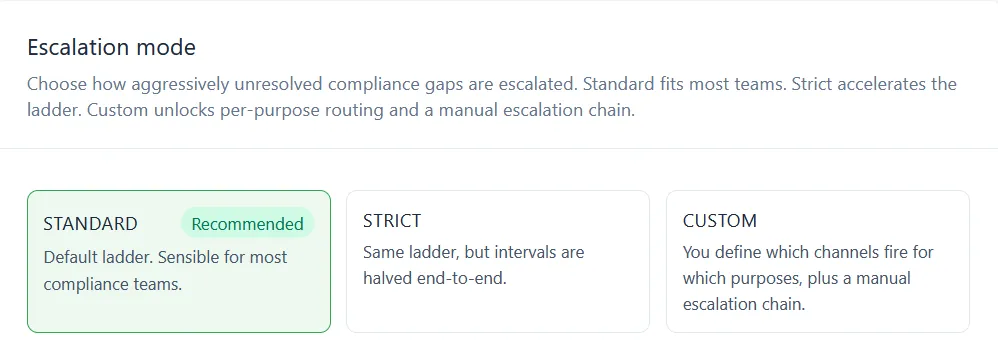
Notifications & escalation is where you control who gets told about an open compliance finding, on which channel, and how quickly an unresolved one climbs to your admins. You reach it from Team > Configuration > Notifications & escalation. Only admins can change these settings.
Escalation mode
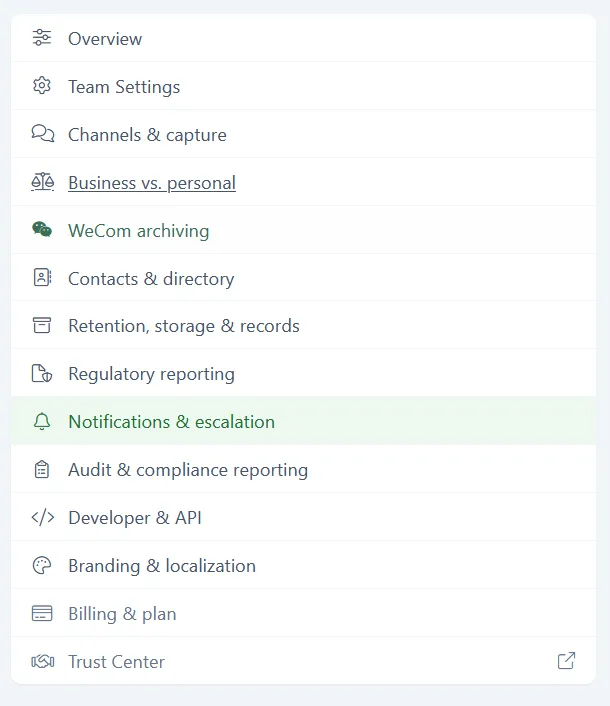
Section titled “Escalation mode”Escalation mode sets how aggressively unresolved compliance gaps are escalated. Pick one of three:
- Standard - The default ladder. Recommended, and the right fit for most compliance teams.
- Strict - The same five steps and the same recipients, but each one arrives about twice as fast.
- Custom - You define which channels fire for which purposes. Selecting it adds Per-purpose channel routing further down the page.
The resulting ladder
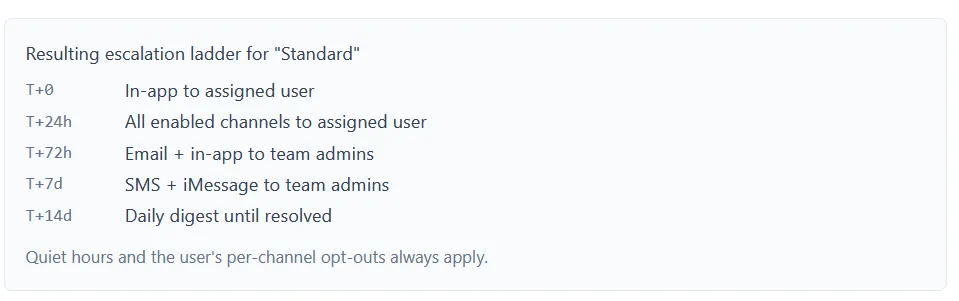
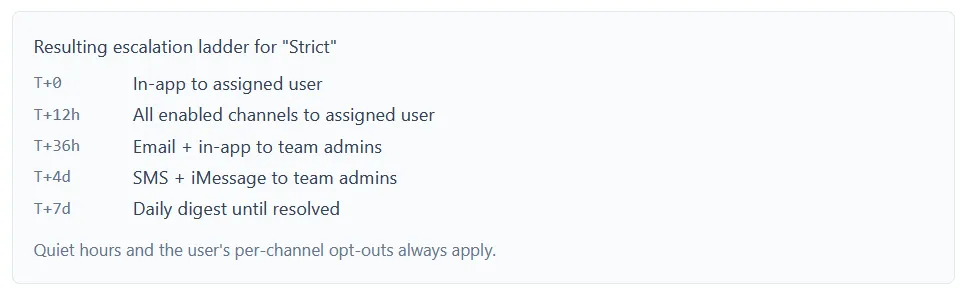
Section titled “The resulting ladder”Below the mode cards, a panel shows the ladder your selected mode produces, so you can read the timing before you save. Standard and Strict run the same five steps to the same people, on different clocks:
| Who is notified | Standard | Strict |
|---|---|---|
| In-app to the assigned user | T+0 | T+0 |
| All enabled channels to the assigned user | T+24h | T+12h |
| Email plus in-app to team admins | T+72h | T+36h |
| SMS plus iMessage to team admins | T+7d | T+4d |
| Daily digest until resolved | T+14d | T+7d |
Quiet hours and each user’s per-channel opt-outs always apply, at every step.
Pick Custom and the panel stops showing a ladder at all, because there is no default one left: your own routing replaces it. Quiet hours and user opt-outs still apply either way.

Notification policy
Section titled “Notification policy”This section is the default routing for compliance findings. Channels and per-purpose overrides decide where alerts go. Quiet hours and digest cadence decide when they fire.
- Grace period (minutes) - Tolerance before a finding counts as a review-SLA breach.
- Reminder cadence (hours) - How often to re-ping reviewers while a finding is still open.
- Escalation delay (hours) - How long to wait before escalating to the next member of the chain.
- Auto-suspend after (hours) - Optional. Caps how long a single unresolved item can keep escalating. Past that window Comma stops sending further escalations for it, and the item stays open and visible in the admin dashboard. Leave it blank to disable the cap.
- Quiet-hours timezone - The timezone the quiet-hours window is evaluated in.
- Quiet hours start and Quiet hours end - The window, in 24-hour HH:MM format, during which notifications are held.
- Default channels - Where notifications go. Tick any combination of In-app, Email, iMessage, and SMS. In Custom mode, anything you have given its own routing uses that instead.
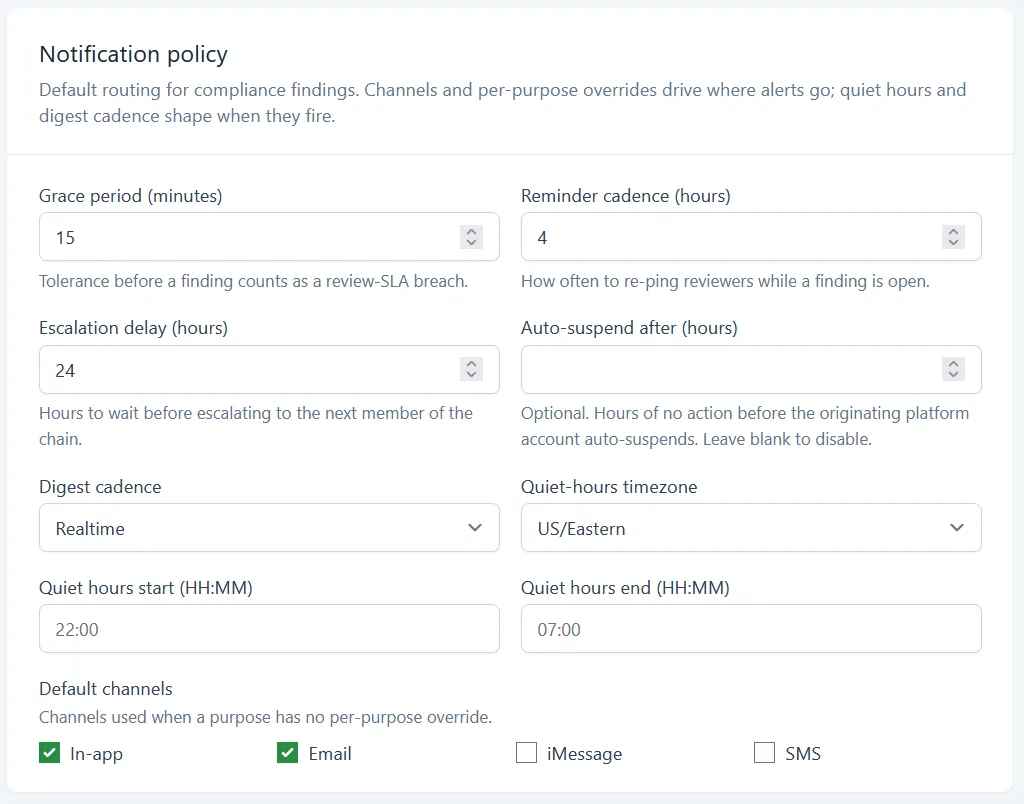
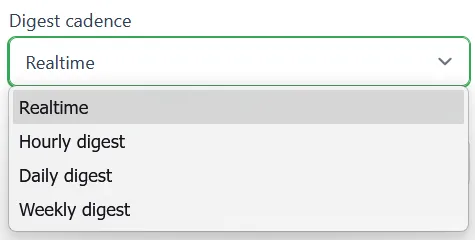
Digest cadence - How often notifications go out. Realtime sends each one as it happens. Hourly digest, Daily digest, and Weekly digest batch them instead.
Click Save notification policy to apply your changes.
Per-purpose channel routing
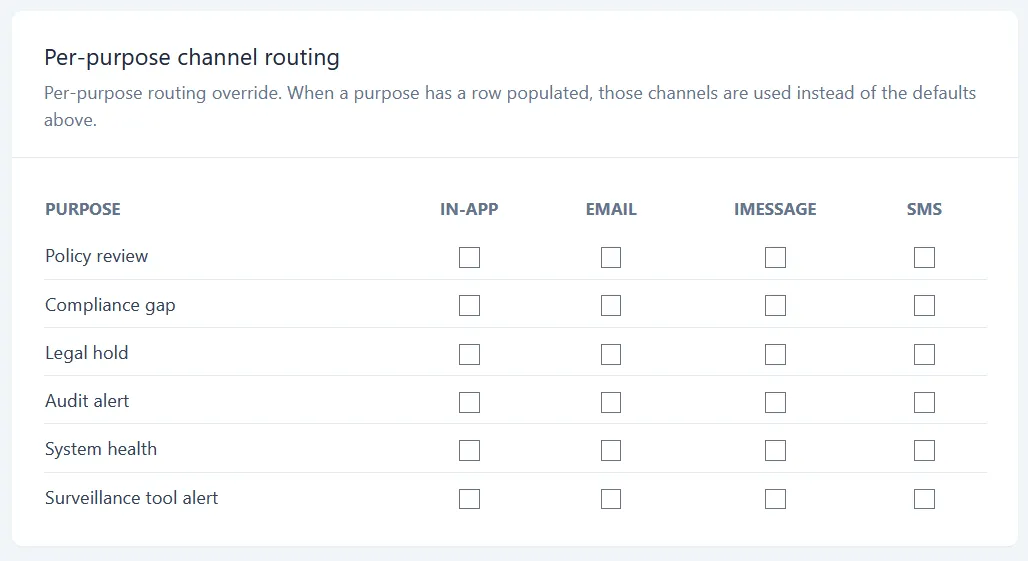
Section titled “Per-purpose channel routing”Custom mode adds a routing table below the notification policy. Each row is a notification purpose, each column a channel. Tick the channels a purpose should use, and those channels are used for it instead of your default channels. Leave a row empty and that purpose falls back to the defaults.
The six purposes are Policy review, Compliance gap, Legal hold, Audit alert, System health, and Surveillance tool alert. Each can route to any combination of In-app, Email, iMessage, and SMS.
This is how you keep a legal hold off the same channel as a system health notice.
Connection health escalation
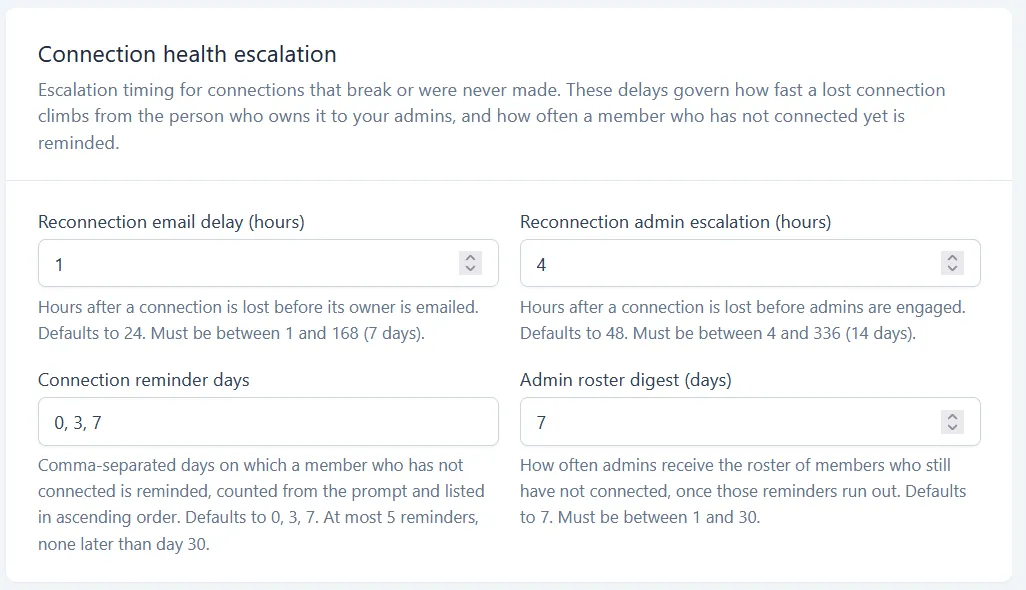
Section titled “Connection health escalation”These four fields govern connections that are disconnected, and connections that were never made in the first place. They set how fast a lost connection climbs from the person who owns it to your admins, and how often a member who has not connected yet gets reminded.
- Reconnection email delay (hours) - Hours after a connection is lost before its owner is emailed. Defaults to 24. Must be between 1 and 168, which is 7 days.
- Reconnection admin escalation (hours) - Hours after a connection is lost before admins are engaged. Defaults to 48. Must be between 4 and 336, which is 14 days.
- Connection reminder days - When to remind a member who has not connected yet, counted in days from the first prompt. The default,
0, 3, 7, sends a reminder the same day, another three days later, and a third on day seven. Enter the days lowest to highest, separated by commas, up to five of them, and none past day 30. - Admin roster digest (days) - How often admins receive the roster of members who still have not connected, once those reminders run out. Defaults to 7. Must be between 1 and 30.
Who changed what
Section titled “Who changed what”The bottom of the screen names the person who last changed these settings and when. View settings change history takes you to Audit & compliance reporting, where the full configuration change log lives.